Enable css modules
Enabling CSS Modules in create-react-app setup:
If the project was created using create-react-app css modules will be enabled by default.
If the project was not created using the create-react-app use the following tutorial to enable css modules:
Installing Webpack
After installing NPM and node we need to setup an empty directory somewhere and run the following:
This will make a
package.json file and fill it with a bunch of defaults. This is our dependency manifest - the instructions for what is downloaded and installed when other people npm install this project.
Webpack will be handling our build process. It will be watching our CSS, JavaScript, and HTML and performing all the magic in between. But what is Webpack? Maxime Fabre wondered if Webpack is a build system or a module bundler:
Well, it's both—and by this I don’t mean that it does both I mean that it combines both. Webpack doesn’t build your assets, and then separately bundle your modules, it considers your assets to be modules themselves…that can be imported, modified, manipulated, and that ultimately can be packed into your final bundle.
If this sounds weird, don't worry. Remember when Sass and Gulp and npm were all unfamiliar and scary? We’ll figure it out.
Let's makes sure Webpack is "bundling" modules correctly by making one JavaScript file define a dependency so that we can import that chunk of code. First, we need to globally install Webpack, which will give us access to the
webpack command in our terminals:
Once that’s finished we need to install Webpack locally in our project, like so:
Now we need to make an
index.js file in a /src directory. Typically I like to make a directory where all of the static assets reside (such as images, fonts, CSS files and markup). Any code that I write will typically live in a /src directory, whilst any code that is written by a machine or interpreted in a certain process should live in a /builddirectory. My thinking is that it ought to be totally OK to delete a /build directory and not suffer any problems whatsoever because we can just run a command and it will process the stuff from /src directory and entirely rebuild the /build directory. In this case, we want Webpack to take a look at everything in /src, perform a certain process, and then move that code into /build.
In the
/src directory we can also add an empty alert.js file (we’ll return to it in a minute). We'll also need a webpack.config.js file that sits at the root of our project, outside the /src directory so that our project structure should now look like this:
Inside `webpack.config.js` (a file for configuring Webpack), we can add the following:
Whenever we run the
webpack command from here on out, Webpack will look at all of the assets in /src to build a dependency tree.
Returning to our
src/index.js file we can add this:
And inside our
alert.js file we can write this:
Now let’s make an
index.html file in our root and add our bundle in a script tag just before the <body> closes:
That
bundle.js will be generated by Webpack. To generate it all we have to do is run the webpack command. To make this easier for ourselves, we can update our package.json file with a build script. This is what you should find in that file:
Those are the defaults that
npm gave us, but we can replace the above with the following code to make our own command line script that will run Webpack for us and open up a browser window:
So whenever we run
npm start we’ll automatically run the webpack command and open up our index file in the browser. Let’s do that now and see what happens.
Hurray, something is working! This proves that our
index.js file is importing our code from alert.js and that Webpack is bundling everything properly. If we now delete the alert.js file we’ll find an error when we run npm start again: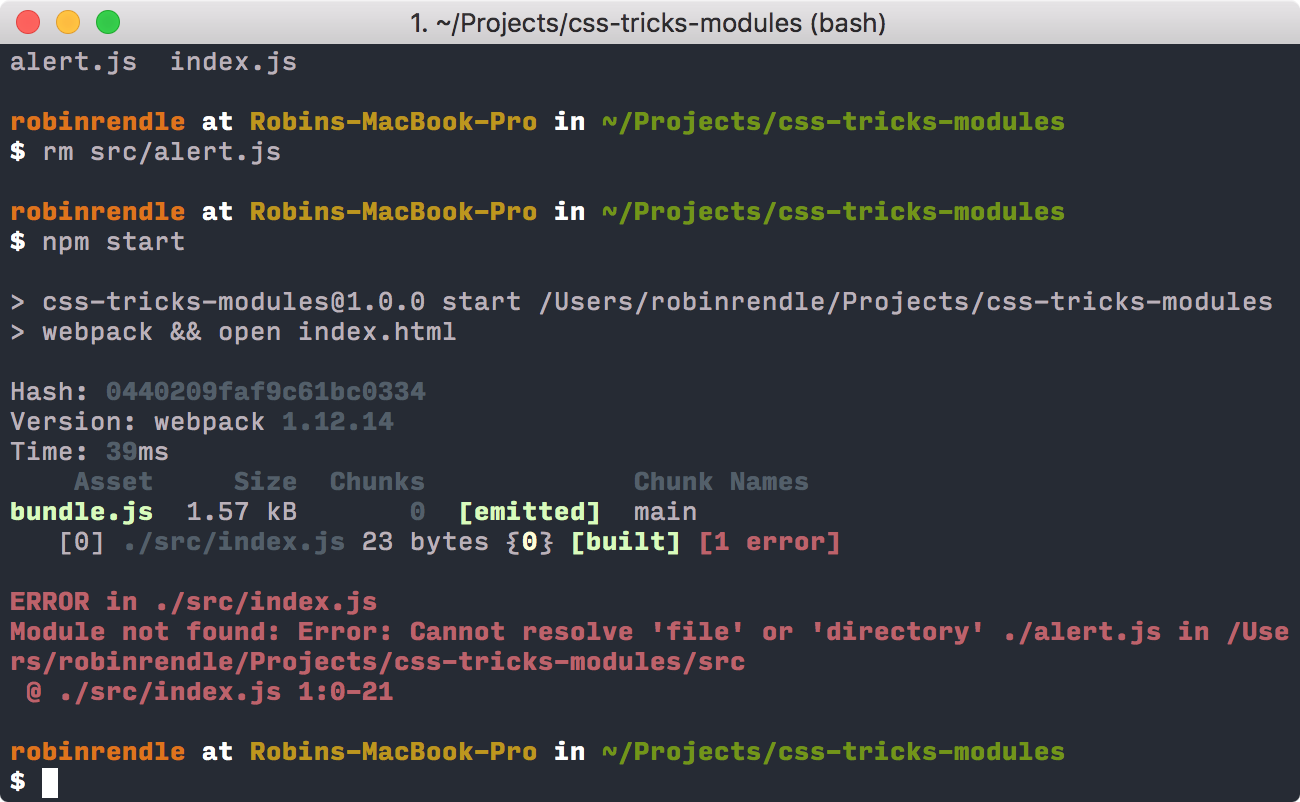
That’s the error that Webpack will reveal if it can’t find an imported module. But now that we’ve confirmed that all of this works we can scrap that
require statement in our index.js file and move onto the next step in learning about Webpack.#Adding our First Loader
A loader in Webpack is really important. Maxime Fabre has this to say on the subject:
Loaders are small plugins that basically say “When you encounter this kind of file, do this with it”.
In Maxime’s tutorial he adds the Babel loader, which is a really good starting point because Babel allows us to use ES2015 and the latest improvements to the JavaScript language. So instead of the Common.js function that we used earlier to
requireanother module we can use import instead. With Babel we can also use classes, arrow functions and a bevy of other cool features:Tools like Babel allow us to write new ES2015 code today and perform a task called transpiling (much like preprocessing) to convert the code into a earlier version of JavaScript that has greater browser support. This is similar to how Sass works; initially writing your code in Sass syntax, and then a preprocessor compiles to standard CSS.
The following will install the Webpack babel loader and the dependencies we need to run Babel:
In a
.babelrc file in the root of our project we can configure the preset to let others know which JavaScript syntax we’ll be using:
Now we want to run Babel on all of our
.js files but only the files that we write, any other dependencies that we install later might have their own syntax and we don’t want to mess with that code. This is where the Webpack loader comes into play. We can open up webpack.config.js file and replace that code with this:
That
test key/value pair inside the loaders array is how we tell Webpack which type of file we want to perform an action on whilst include tells it precisely where in our project we want that action to be performed.
Let’s test that Babel is working in conjunction with Webpack. In a new file (`src/robot.js`), let’s write the following:
This JavaScript file is using a bunch of ES2015 specific features, like
export, constand let, arrow functions, and template literals.
Now we can
import that module into our src/index.js file, like so:
Finally, all we need to do is run
npm start again and our browser should pop back with the text: “Affirmative, Dave. I read you but I’m sorry, I’m afraid I can’t do that.” This simply confirms that Babel is working as it should.
Hurray! That’s not a CSS Module yet, although we’re certainly one step closer. But before we move on let’s delete
src/robot.js and all the code from src/index.js.#Loading the styles
Now that we’ve got our templates almost working we’ll need to add two more loaders: css-loader and style-loader, which we’ll install:
The css-loader takes a CSS file and reads off all its dependencies whilst the style-loader will embed those styles directly into the markup. Let’s test this by writing some CSS in
src/app.css:
Then we can
import that stylesheet into our `src/index.js` file:
Whoa, hang on! Did we just make a stylesheet a dependency of a JavaScript file? Hell yes we did. But before it works properly, and before we see why this is useful, we first need to reconfigure our
webpack.config.js again:
Running
npm start will leave us with something like this: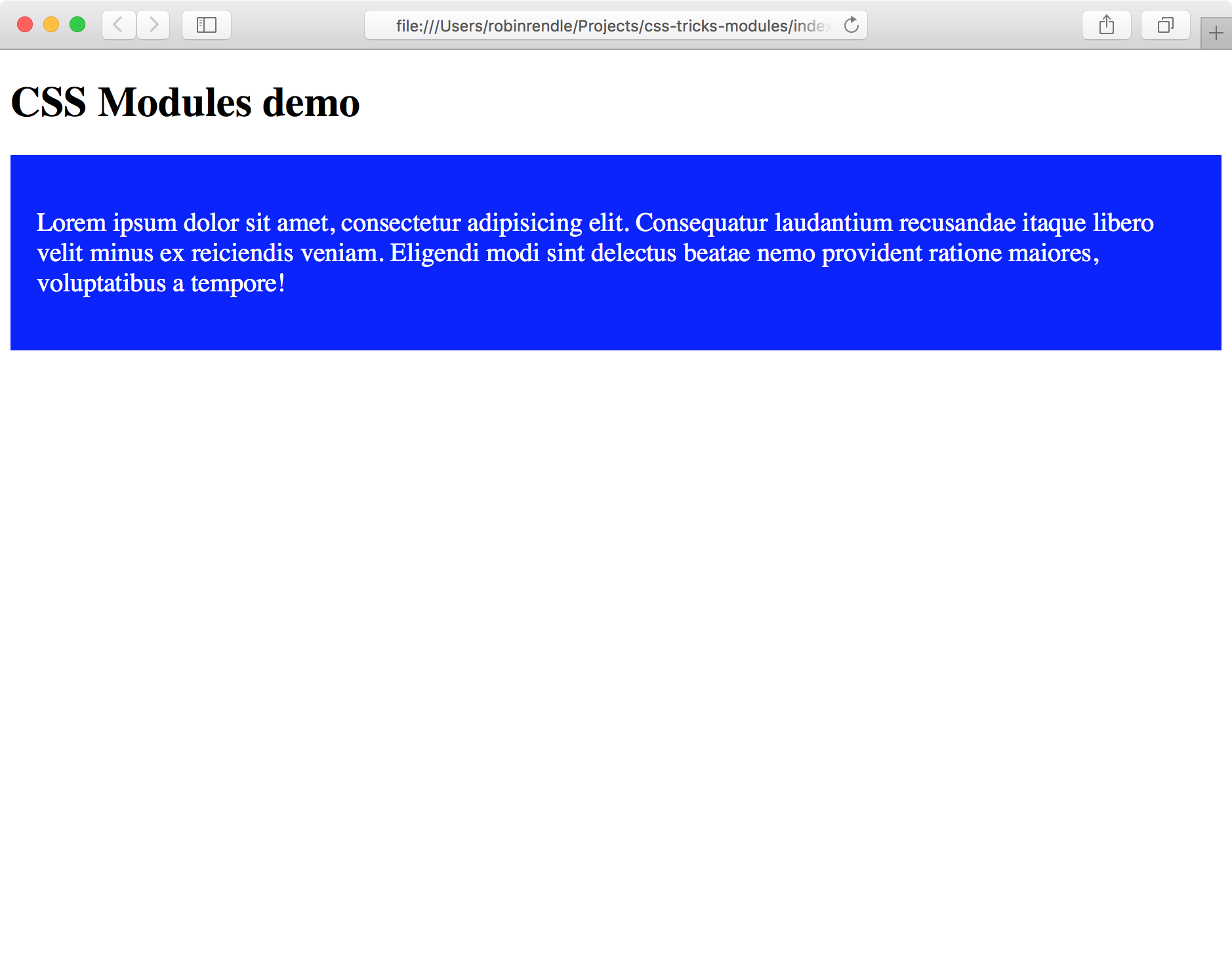
Consequently, if we "Inspect Element" on our document we’ll find that the style-loader has placed that file into a
<style> tag in the <head> of the document: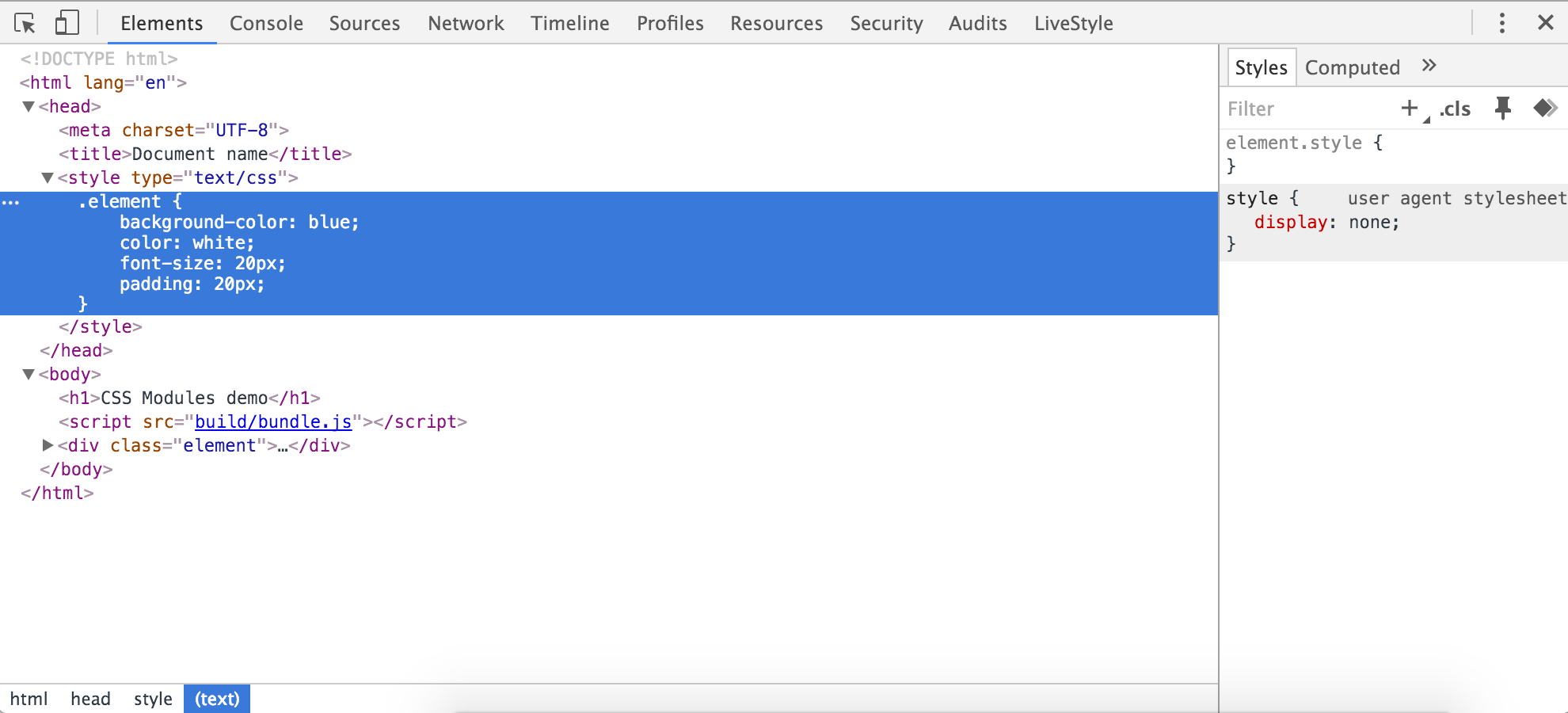
Let’s take stock of what just happened. We made a JavaScript file that requested another CSS file and that code was then embedded within a web page. So in a more realistic example we could create a
buttons.js file and make buttons.css a dependency of it, and then import that JavaScript into another file that organises our templates and spits out some HTML. This ought to make a our code absurdly modular and easy to read!
Personally, just to keep things clean, I’d prefer to have a separate CSS file rather than adding all the code inline. To do that we’ll need to use a Webpack plugin called extract text which:
moves every require('style.css') in entry chunks into a separate css output file. So your styles are no longer inlined into the javascript, but separate in a css bundle file (styles.css). If your total stylesheet volume is big, it will be faster because the stylesheet bundle is loaded in parallel to the javascript bundle.
We have to install that with npm:
Now we can update our `webpack.config.js` file again by requiring it and placing our CSS loader into it:
ExtractTextPlugin will now create a `styles.css` file for us!
You might’ve noticed that we’ve gotten rid of style-loader entirely. That’s because we don’t want those styles injected into our markup any more. So now if we open up the
/build directory, we should find that a styles.css file has been created with all of our code inside. And within our index.html file, we can now add our stylesheet in the <head>:
Run
npm start again and blammo! - our styles magically appear back on the page where they belong.
Now that we have our CSS and HTML working on the page, how do we manipulate the class names in order to get all the benefits of a local scope? All we have to do is update our
webpack.config.js file like so:
This will add the crazy generated text to the end of the class name. That’s all that CSS Modules really is, a hash which changes the classes which can be added in Webpack via a CSS loader.
Next, we have to update our
index.js file with the styles.element class:
Look what happens! One more
npm start and our code has now been processed by Webpack so local scope is no longer an issue, since the class that gets injected into the web page now looks like this:
Comments
Post a Comment